HTML to PDF API
Convert HTML files or live web page URLs to PDF with Chrome headless: pixel-perfect rendering, JS/CSS injection, AdBlock.
 Tomas, CEO
Short answer: to embed fonts in a PDF made from HTML and keep their real names, give the browser one static font file per weight. With Google Fonts, that means one request per weight, such as wght@400 and wght@700, not one request for all of them. If you request several weights at once, the PDF ends up with Type 3 fonts that are all called "Regular".
Many teams convert in two steps. First they turn HTML or a web page into a PDF with the HTML to PDF API or their own tool. Then they convert that PDF to an editable document with the PDF to Word API or the PDF to PowerPoint API. This second step reads the font names stored in the PDF to decide which font each piece of text uses.
If the PDF says "Roboto-Light", Word gets Roboto Light. A font's weight is how thick its letters are, from Thin (100) to Black (900). If every weight in the PDF is called "Roboto-Regular", Word cannot tell Light from Medium or Black, and only Regular and Bold remain. This guide shows why that happens and how to fix it.
Most modern web fonts are variable fonts: one file that holds every weight from Thin to Black. Google Fonts serves a variable file whenever one request asks for more than one weight:
<!-- Each of these loads one variable font file -->
<link href="https://fonts.googleapis.com/css2?family=Roboto:wght@300;400;500;700&display=swap" rel="stylesheet">
<link href="https://fonts.googleapis.com/css2?family=Roboto:wght@100..900&display=swap" rel="stylesheet">
Chrome cannot embed a variable font as a normal font when it prints to PDF. Tools built on Chrome, such as Puppeteer and Playwright, behave the same way. Chrome writes the text as Type 3 fonts instead. A Type 3 font stores each letter as a small drawing, not as a real font, and Chrome names every weight after the font's default style. Our four-weight sample page produced seven fonts, all named the same:
name                    type
AAAAAA+Roboto-Regular   Type 3
BAAAAA+Roboto-Regular   Type 3
CAAAAA+Roboto-Regular   Type 3
...
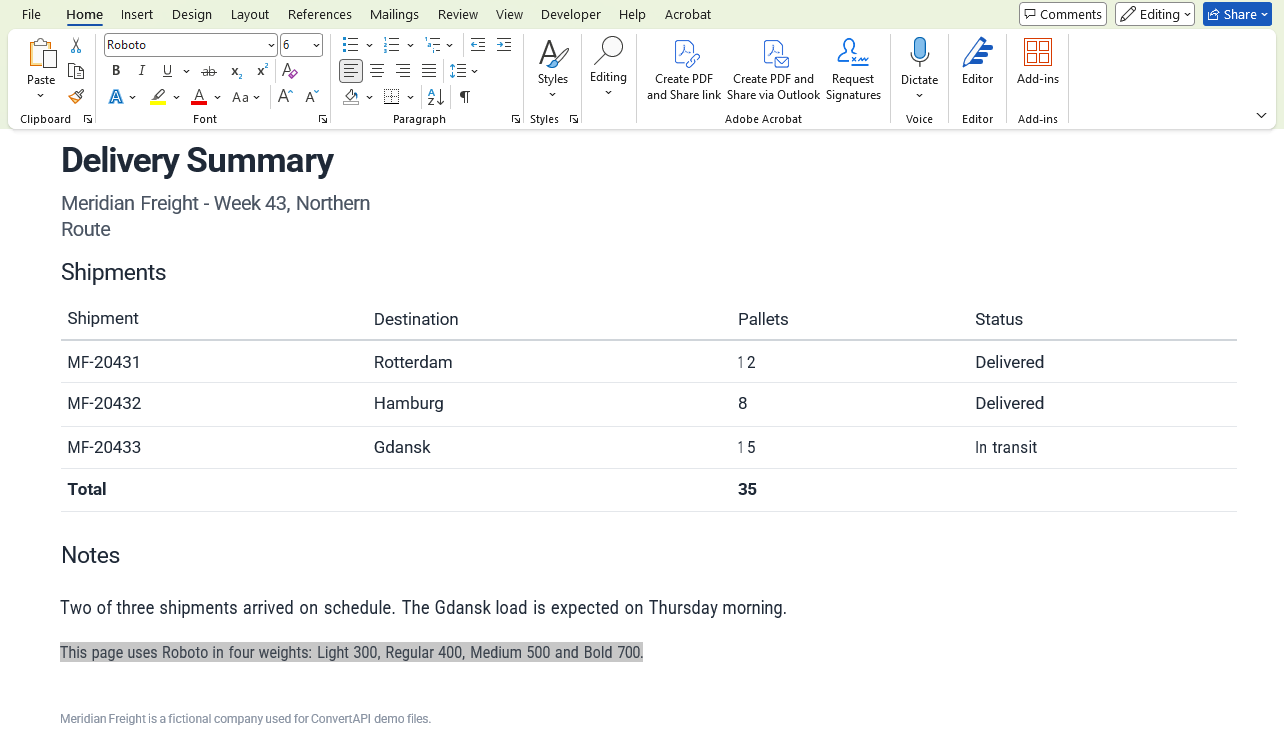
The PDF still looks right on screen. The problem appears in the next step. Converted to Word, every line becomes plain "Roboto", and only a bold flag survives for the heaviest weights. Light and Medium are gone, and Type 3 text also gets extra spaces, so "12" turned into "1 2" in our sample.
Before: the PDF made with one Google Fonts request for all weights. Word shows plain "Roboto" for the Light text, and the pallet counts read "1 2" and "1 5".
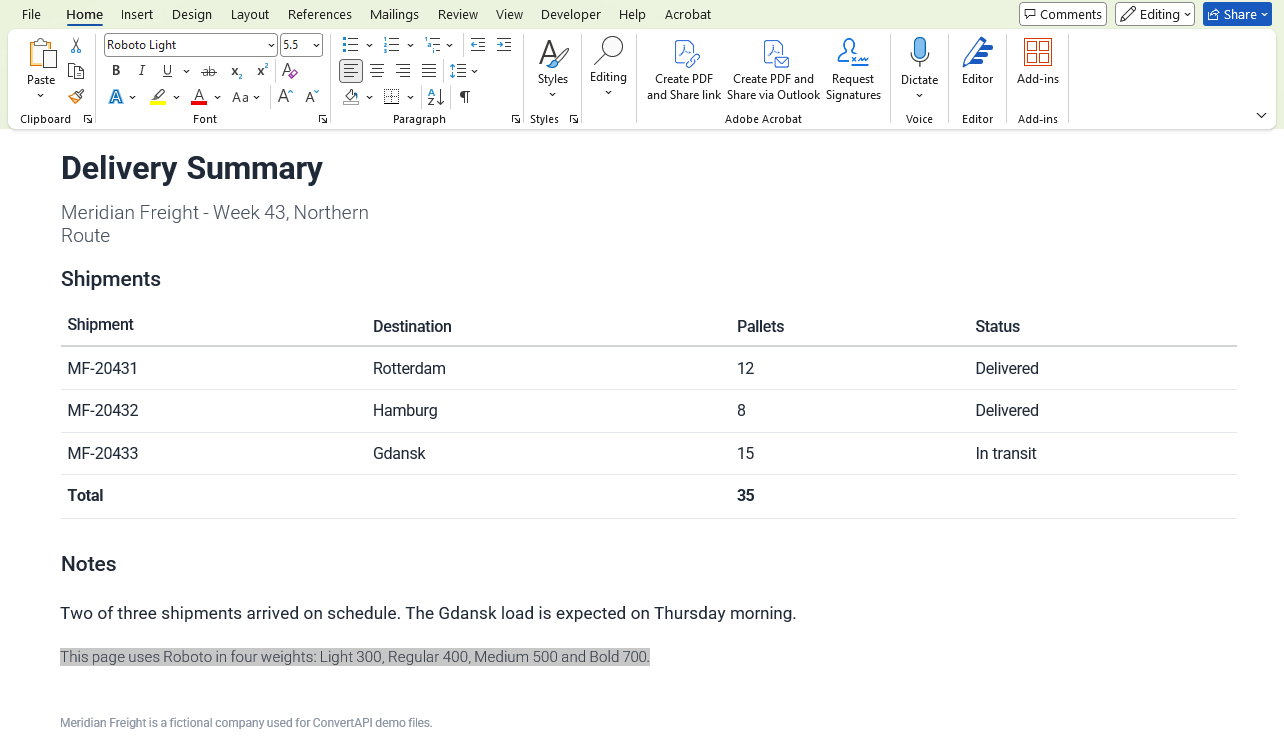
After: the PDF made with one request per weight. Word shows "Roboto Light", and the numbers are intact.
Give the browser a static font file for each weight you use. A static font file contains only one weight. Static files are embedded as real TrueType fonts with their real names. TrueType is the normal way a PDF stores a font:
name                    type
AAAAAA+Roboto-Bold      CID TrueType
BAAAAA+Roboto-Light     CID TrueType
CAAAAA+Roboto-Medium    CID TrueType
DAAAAA+Roboto-Regular   CID TrueType
Word then shows Roboto Light, Roboto, Roboto Medium and bold Roboto, exactly as designed.
Google serves a static file when a request asks for a single weight. So request each weight on its own line:
<link href="https://fonts.googleapis.com/css2?family=Roboto:wght@300&display=swap" rel="stylesheet">
<link href="https://fonts.googleapis.com/css2?family=Roboto:wght@400&display=swap" rel="stylesheet">
<link href="https://fonts.googleapis.com/css2?family=Roboto:wght@500&display=swap" rel="stylesheet">
<link href="https://fonts.googleapis.com/css2?family=Roboto:wght@700&display=swap" rel="stylesheet">
Do not combine them into one URL, not even as separate family= parameters. Any request that names more than one weight gets the variable file again.
If you host fonts yourself, use the static files. Most font downloads keep them in a static/ folder. Write one @font-face rule per weight:
@font-face { font-family: "Roboto"; font-weight: 400; src: url(/fonts/Roboto-Regular.woff2) format("woff2"); }
@font-face { font-family: "Roboto"; font-weight: 700; src: url(/fonts/Roboto-Bold.woff2) format("woff2"); }Three more things produce Type 3 fonts, so avoid them:
.ttf or .woff2 files.This part is for developers who call the API.
When you convert a live website, you cannot edit its HTML. Use the UserCss parameter to add the static fonts and apply them to the page:
@import url('https://fonts.googleapis.com/css2?family=Roboto:wght@400&display=swap');
@import url('https://fonts.googleapis.com/css2?family=Roboto:wght@700&display=swap');

body, h1, h2, h3, p, li, td, th, span, a {
  font-family: 'Roboto', sans-serif !important;
}
Save that CSS as usercss.css and send it with the conversion:
curl -F "Url=https://www.example.com/your-page" -F "UserCss=<usercss.css" -F "ConversionDelay=3" -F "StoreFile=true" -H "Authorization: Bearer api_token" https://v2.convertapi.com/convert/html/to/pdfOr in C# with the ConvertAPI .NET library:
var result = await convertApi.ConvertAsync("html", "pdf",
    new ConvertApiParam("Url", "https://www.example.com/your-page"),
    new ConvertApiParam("UserCss", "@import url(\"https://fonts.googleapis.com/css2?family=Roboto:wght@400&display=swap\");@import url(\"https://fonts.googleapis.com/css2?family=Roboto:wght@700&display=swap\");body,h1,h2,h3,p,li,td,th,span,a{font-family:\"Roboto\",sans-serif !important}"),
    new ConvertApiParam("ConversionDelay", "3"));
Follow three rules:
@import each. If the page also uses 300 or 500, import those too. Any weight you leave out still comes from the page's own variable font and ends up as Type 3.!important to the font-family rules, and list the elements that set their own font. Without it, class rules and inline styles on the page win. Don't put !important inside @font-face rules, because that drops the font.ConversionDelay to 2 or 3 seconds, so the injected fonts finish loading before the PDF is created.Some websites block injected styles or external fonts with a Content Security Policy. On those sites UserCss has no effect.
Check the fonts before you convert the PDF with the PDF to Word API or the PDF to PowerPoint API:
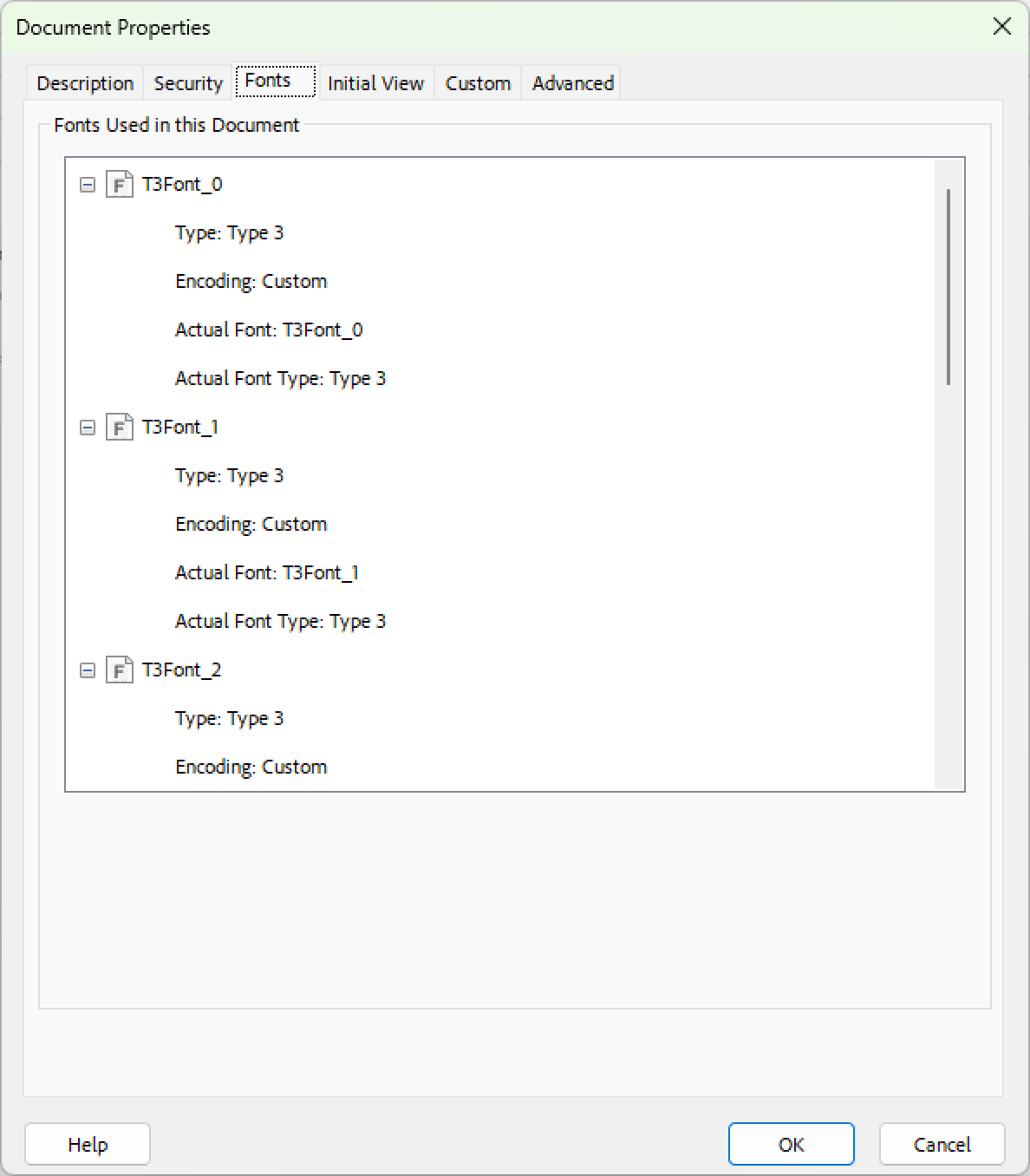
Before: one request for all weights. Acrobat lists only Type 3 fonts named T3Font_0, T3Font_1 and so on, so the real font names are gone.
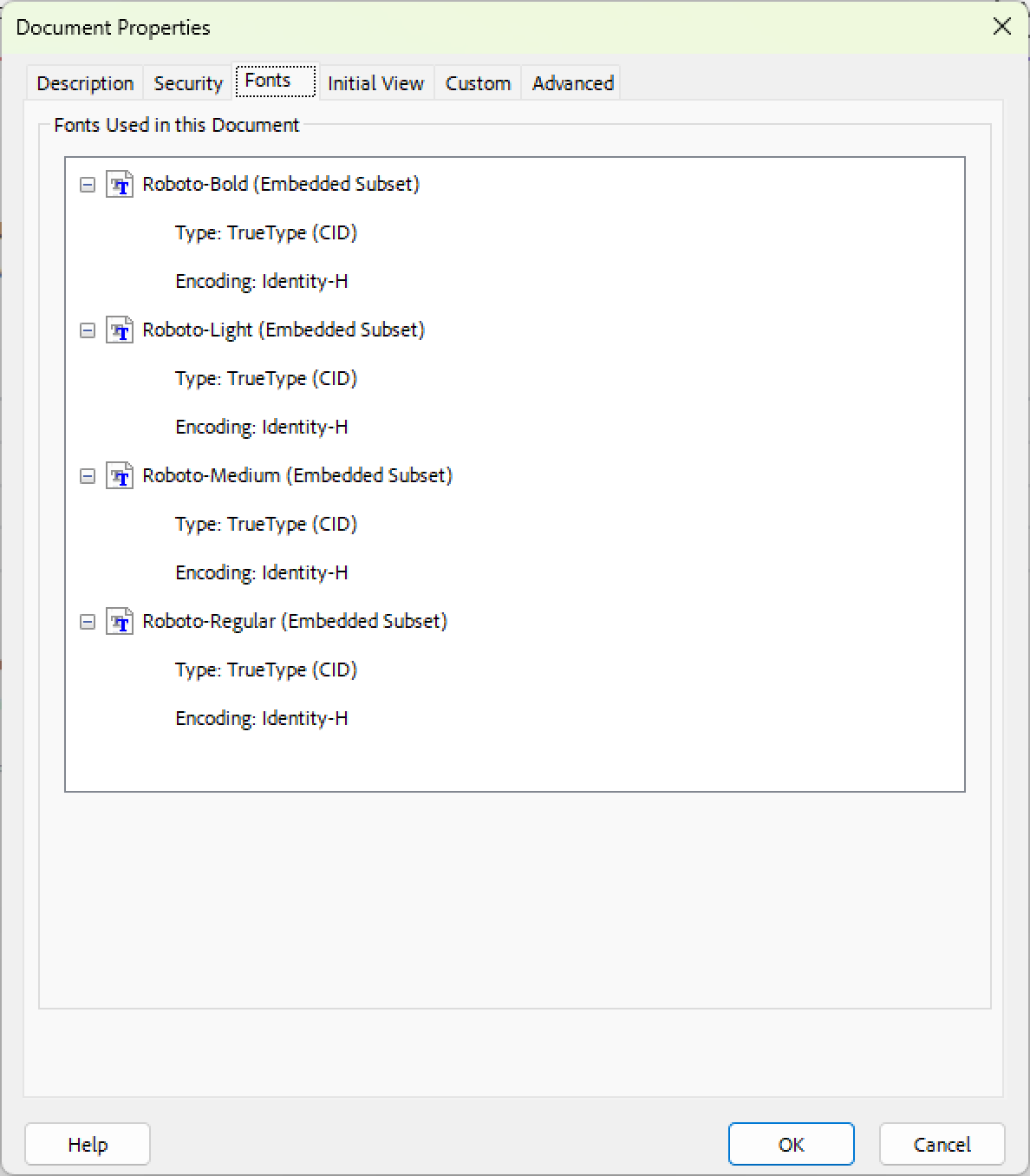
After: one request per weight. Acrobat lists Roboto-Light, Roboto-Regular, Roboto-Medium and Roboto-Bold as embedded TrueType (CID) fonts.
pdffonts output.pdf from the free poppler tools.You want only TrueType or CID TrueType entries with the right weight names. These are the normal font types in a PDF. Also check that every font is embedded: pdffonts shows yes in the emb column, and Acrobat shows "Embedded" or "Embedded Subset" after the name. Any Type 3 entry, shown as T3Font_0 or T3Font_1 in Acrobat, means the page still uses a variable font or misses a weight.
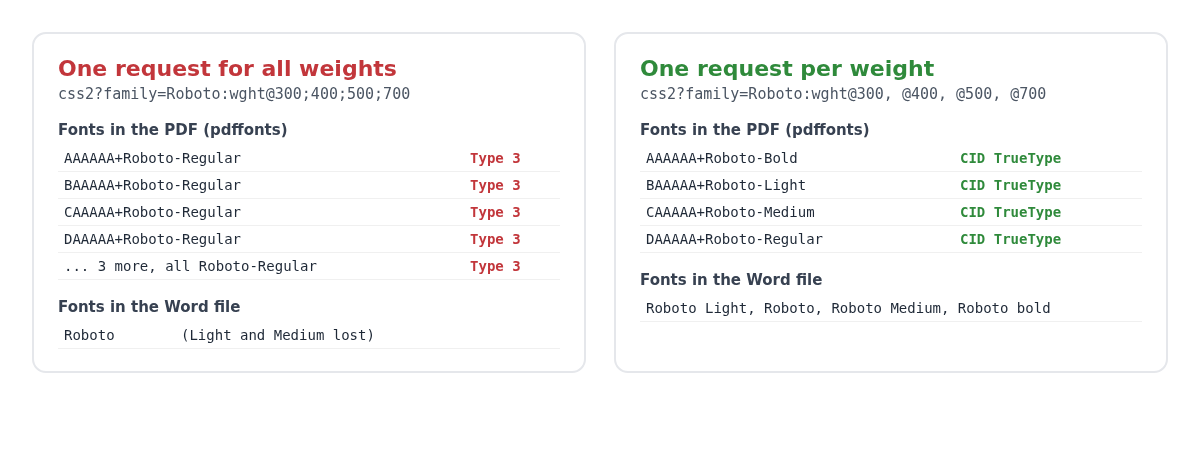
We ran one sample page through the HTML to PDF API and the PDF to Word API. These are the actual outputs:
wght@300;400;500;700@import lines injectedLoad a static font file for every weight the page uses. With Google Fonts, request each weight separately, for example wght@400 and wght@700. The browser then embeds them as TrueType fonts with their real names.
Type 3 fonts store each character as a drawing instead of a normal font program. The text still looks right, but the PDF loses the font's real name and weight. Chrome-based tools write variable web fonts and fake bold text as Type 3.
That is how Adobe Acrobat lists Type 3 fonts. It usually means the page used a variable web font, for example Google Fonts with several weights in one request.
Word reads the font names stored in the PDF. If every weight is stored as "Roboto-Regular", only the family name and a bold flag survive. Embed static fonts with real names, and Word keeps Light, Medium and Black.
Yes. Send CSS in the UserCss parameter of the HTML to PDF API with one @import per weight and !important on the font-family rules. Add a ConversionDelay of 2 to 3 seconds so the fonts finish loading.
Variable web fonts look the same in the browser, but they lose their names when printed to PDF. Static fonts, one file per weight, keep them. Get that right in the HTML step, and the PDF to Word and PDF to PowerPoint conversions keep your typography intact.
Generating invoices or reports from HTML templates? See how to generate dynamic documents at scale, or read the guide to converting HTML to PDF with PHP.
Convert HTML files or live web page URLs to PDF with Chrome headless: pixel-perfect rendering, JS/CSS injection, AdBlock.
Convert PDFs to editable DOCX preserving layout, text, images, and tables with password, page ranges, layout mode, and OCR.
Convert PDFs to editable PPTX preserving layouts, text, tables, and images with password, page ranges, font embedding, and OCR.