How it works

Templates in, finished documents out

Every one of our document tools follows the same three-step shape, so the concept transfers no matter which one you choose.

Step 1

Build a template

Design the layout once in HTML/CSS or in Microsoft Word. Mark where data should land with placeholders or document fields.

Step 2

Send your data as JSON

Make one HTTPS request with your template and a JSON object of values: text, numbers, images, tables and conditions.

Step 3

Get the finished document

ConvertAPI merges the two and returns a polished PDF, Word file or image. No template engine to host or maintain.

Side by side

Compare the three tools

The same data, three delivery shapes. Here is exactly how they differ.

Capability HTML HTML + JSON to PDF WORD Word Template to DOCX WORD Word Template to PDF
Where you build the template HTML & CSS (or Word to HTML) Microsoft Word Microsoft Word
Who usually owns it Developers / web team Business users Business users
Data sent as JSON (Handlebars {{ }}) JSON (fields or {{placeholders}}) JSON (fields or {{placeholders}})
Output format PDF · PNG · JPG Editable DOCX PDF
Result is editable No Yes No
Pixel-level design control Yes Partial Partial
Images, tables & conditionals Yes Yes Yes
Best for Custom invoices, certificates, reports Editable proposals & letters Contracts, invoices, quotes
Explore Explore Explore
Where teams use it

One engine behind your everyday documents

If a document is the same shape every time but the details change, it is a candidate for templating.

Invoices & receipts

Drop in line items, totals and customer details, then send a clean PDF per order.

HTML or Word to PDF

Contracts & agreements

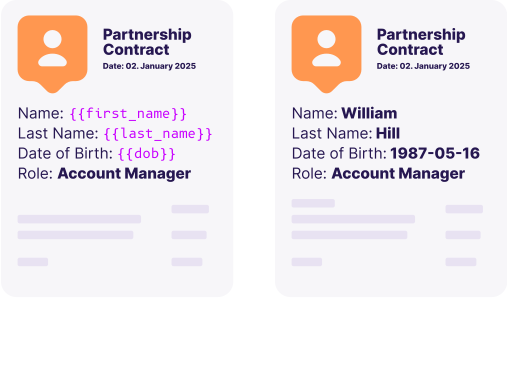
Merge party names, dates and clauses into a legally formatted, locked PDF.

Word to PDF

Certificates & badges

Personalise names and dates at scale and export as PDF or PNG images.

HTML + JSON

Proposals & quotes

Generate tailored proposals your sales team can still tweak in Word.

Word to DOCX

Reports & statements

Loop over data arrays to build tables, charts and multi-page statements.

HTML + JSON

Letters & forms

Mail-merge style letters and application forms, on brand, every time.

Word to DOCX
Beyond find-and-replace

Real templating, not just text swaps

The same three capabilities work across all three tools, so your documents stay dynamic, not static.

Dynamic images

Inject logos, signatures, QR codes or product shots, passed as a URL or Base64 string and sized to fit.

"Name": "logo",
"Type": "image",
"Value": "/9j/4AAQ…"

Tables & repeating rows

Loop over an array to build line items, guest lists or schedules. Rows expand to match your data.

{{#each items}}
  <tr><td>{{name}}</td></tr>
{{/each}}

Conditional content

Show or hide whole sections based on your data: a "Paid" stamp, a discount block or a legal clause.

{{#if paid}}
  <div>Paid in full</div>
{{/if}}

The Word tools offer the same with field types image table conditional and html.

Hands-on guide

Populate a Word template from code

A step-by-step walkthrough with real code examples for the Word tools, including how to choose between Handlebars {{placeholders}} and built-in Word fields, plus images, tables and conditional content.

Read the guide
Two ways to bind data · Word to DOCX / PDF
Method 1

Placeholders

Write {{tokens}} straight into the document text, fast and visible.

Dear {{client.name}},
Method 2

Word fields

Bind to custom document-property fields managed inside Word.

MERGEFIELD InvoiceNo

Enterprise-Grade Security

We ensure that all document processing is handled securely in the cloud, adhering to industry-leading standards like ISO 27001, GDPR, and HIPAA. To enhance security even further, we can ensure that no files or data are stored on our servers and never leave your country.

Learn more about security

Frequently Asked Questions

What is dynamic document generation?

It is the process of producing a finished document - like a PDF or Word file - by merging a reusable template with data. You design the layout once, then generate one document per record by sending different values each time, all through a single API call.

Which tool should I choose: HTML, DOCX or PDF?

Use HTML + JSON to PDF when developers want full pixel control and PDF/PNG/JPG output. Use Word Template to DOCX when business users design in Word and need an editable result. Use Word Template to PDF when the design lives in Word but you ship a final, locked PDF.

How is data injected into a template?

You send a JSON object alongside the template. The HTML tool uses Handlebars {{ mustache }} syntax. The Word tools support two methods: filling Microsoft Word custom document-property fields, or replacing {{placeholders}} written directly in the text - including images, tables and conditional blocks.

Can I include images, tables and conditional sections?

Yes. All three tools support injecting images, building repeating rows or tables from arrays, and showing or hiding sections based on conditions - so documents adapt to each record rather than just swapping in text.

Do I need to install or host anything?

No. Document generation runs on ConvertAPI's cloud through a single REST request. There is no template engine, headless browser or Office install to maintain, and official SDKs are available for every major language.

What output formats are supported?

The HTML tool returns PDF, PNG or JPG. The Word tools return an editable DOCX or a final PDF respectively. You choose the format that matches how the document will be used.

Ready to automate your documents?