Split PDF API
Split large PDF files into individual pages or specific ranges based on patterns, bookmarks, or text to organize your documents.
 Tomas, CEO
Splitting a PDF in C# looks like a one-liner until the requirements arrive: split at every bookmark, start a new file when a regex matches, extract just the signed pages, keep memory flat on 500-page documents. This guide compares the four practical ways to split PDFs in C# and .NET - iText, PdfSharp, Aspose.PDF, and the ConvertAPI REST service - with working code for each, honest limitations, and a decision table.
| Method | License / cost | Pages & ranges | By bookmarks | By text / regex | Runs offline |
|---|---|---|---|---|---|
| iText (iText 7) | AGPL or paid commercial | Yes | Manual outline parsing | No | Yes |
| PdfSharp | MIT, free | Yes | No | No | Yes |
| Aspose.PDF | Commercial, per developer | Yes | Manual | No | Yes |
| ConvertAPI | Free trial, pay per conversion | Yes | Yes, one parameter | Yes, regex | No (REST API) |
iText is the most capable open-source PDF library for .NET, and its PdfSplitter handles page-count splits cleanly:
using iText.Kernel.Pdf;
using iText.Kernel.Utils;

class Splitter : PdfSplitter
{
    private int _part = 1;
    public Splitter(PdfDocument doc) : base(doc) { }
    protected override PdfWriter GetNextPdfWriter(PageRange documentPageRange)
        => new PdfWriter($"output/part_{_part++}.pdf");
}

using var pdfDoc = new PdfDocument(new PdfReader("sample.pdf"));
foreach (var doc in new Splitter(pdfDoc).SplitByPageCount(1))
    doc.Close();
Limitations. The license is the big one: iText 7 is AGPL, so using it in a closed-source product requires a commercial license. Splitting by bookmarks means walking the outline tree yourself, and content-based splitting (a new file at every "Chapter N") is a manual text-extraction project.
PdfSharp is free (MIT) and perfect when all you need is page-level surgery:
using PdfSharp.Pdf;
using PdfSharp.Pdf.IO;

var input = PdfReader.Open("sample.pdf", PdfDocumentOpenMode.Import);
for (var i = 0; i < input.PageCount; i++)
{
    var output = new PdfDocument();
    output.AddPage(input.Pages[i]);
    output.Save($"output/page_{i + 1}.pdf");
}
Limitations. PdfSharp only understands pages - there is no bookmark or content awareness at all, so anything smarter than fixed ranges is off the table. Encrypted files and some newer PDF features can also be problematic.
Aspose.PDF is a polished commercial library with the same page-loop pattern:
using Aspose.Pdf;

var document = new Document("sample.pdf");
var pageNumber = 1;
foreach (var page in document.Pages)
{
    var newDocument = new Document();
    newDocument.Pages.Add(page);
    newDocument.Save($"output/page_{pageNumber++}.pdf");
}
Limitations. Pricing starts at four figures per developer, the assembly is heavy, and large documents are constrained by server memory. Bookmark- and content-based splitting again mean custom code on top.
The Split PDF converter moves the work to an API call - which is what unlocks the split modes the libraries above cannot do in a few lines: bookmarks, regex text patterns, and mixed ranges, with no document-size memory pressure in your app.
Install the official .NET SDK and authenticate:
dotnet add package ConvertApiusing ConvertApiDotNet;
var convertApi = new ConvertApi("api-token");Your API token lives in the dashboard.
Use the SplitByBookmark parameter to break your PDF at each bookmark level, generating a separate file for each bookmark entry:
var convert = await convertApi.ConvertAsync("pdf", "split",
    new ConvertApiFileParam("File", "files/sample.pdf"),
    new ConvertApiParam("SplitByBookmark", "true")
);
await convert.SaveFilesAsync("output/bookmark-splits");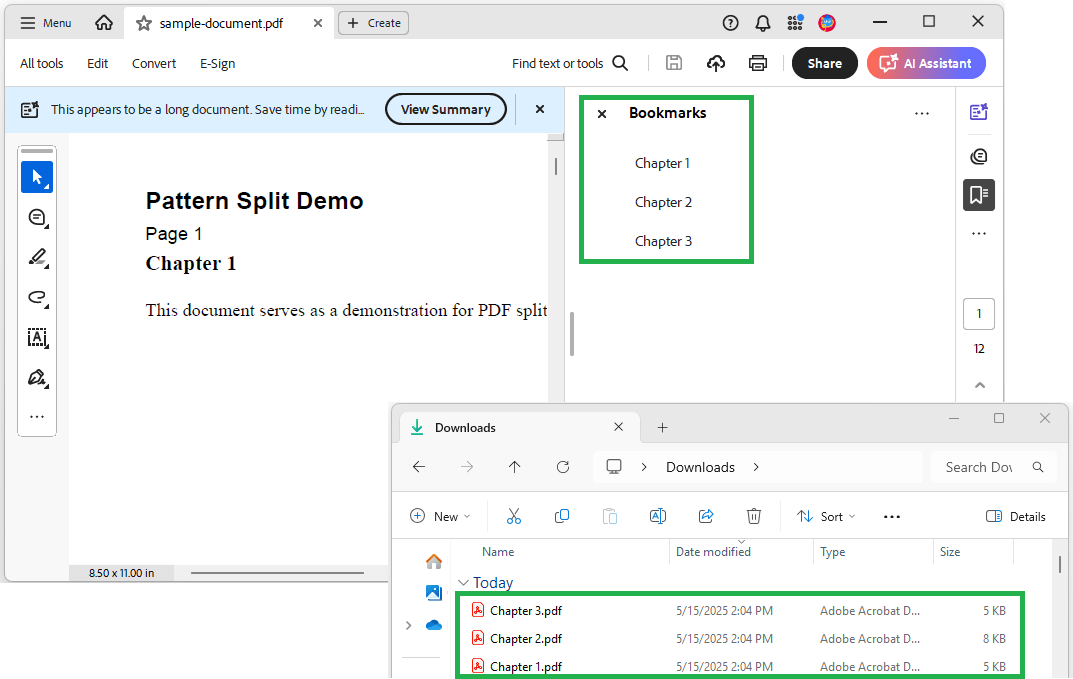
To split your document into consecutive chunks of specified sizes, use the SplitByPattern parameter with a comma-separated sequence of positive integers. For example, "2,3" creates one file with the first 2 pages and a second file with the next 3 pages:
var convert = await convertApi.ConvertAsync("pdf", "split",
    new ConvertApiFileParam("File", "files/sample.pdf"),
    new ConvertApiParam("SplitByPattern", "2,3")
);
await convert.SaveFilesAsync("output/pattern-splits");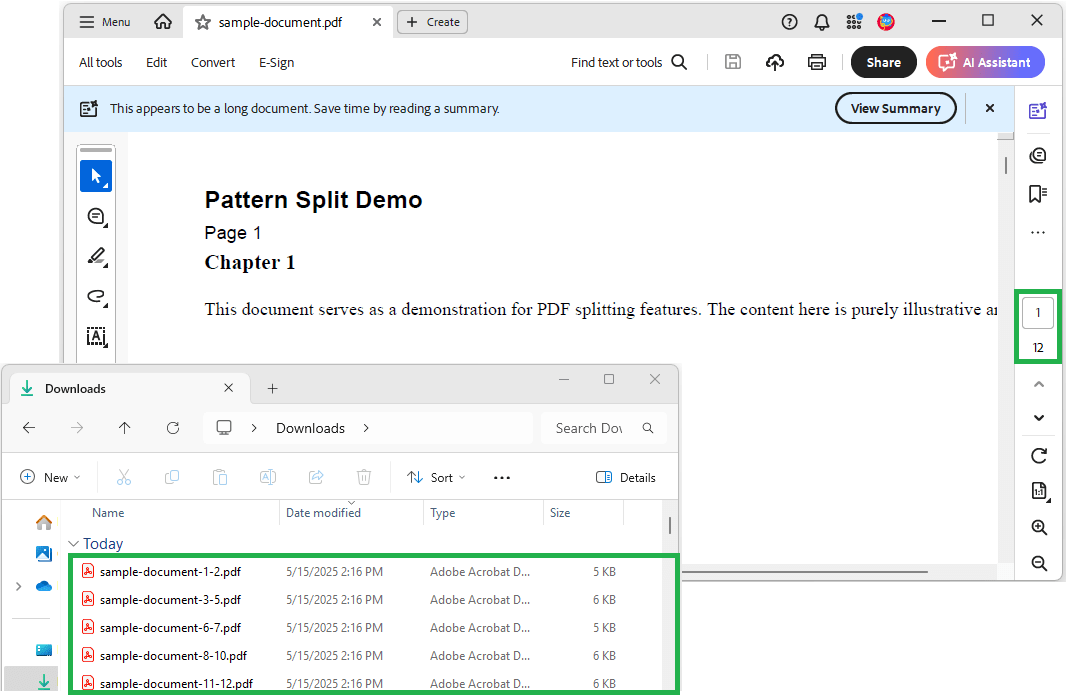
Use the SplitByTextPattern parameter with a regular expression - each time the pattern matches, a new split begins. Ideal for dividing by chapters, sections, invoices in a batch print file, or any content marked by a consistent pattern:
var convert = await convertApi.ConvertAsync("pdf", "split",
    new ConvertApiFileParam("File", "files/sample.pdf"),
    new ConvertApiParam("SplitByTextPattern", @"Chapter\s+\d+")
);
await convert.SaveFilesAsync("output/text-pattern-splits");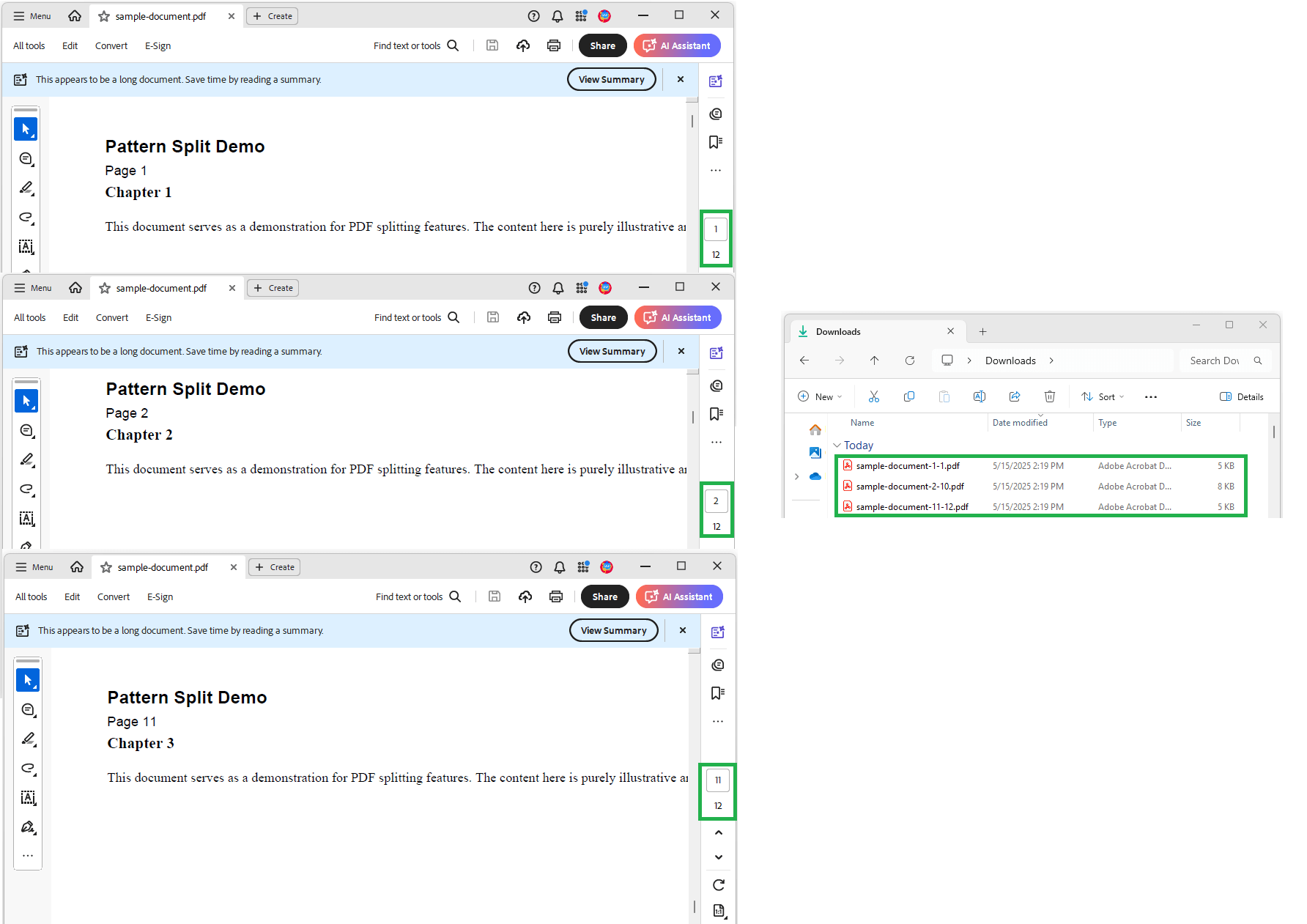
The ExtractPages parameter extracts a range and saves each page within it as a separate file. It accepts comma-separated page numbers or ranges (e.g., "5-10", "1,3,7"):
var convert = await convertApi.ConvertAsync("pdf", "split",
    new ConvertApiFileParam("File", "files/sample.pdf"),
    new ConvertApiParam("ExtractPages", "5-10")
);
await convert.SaveFilesAsync("output/extracted-pages");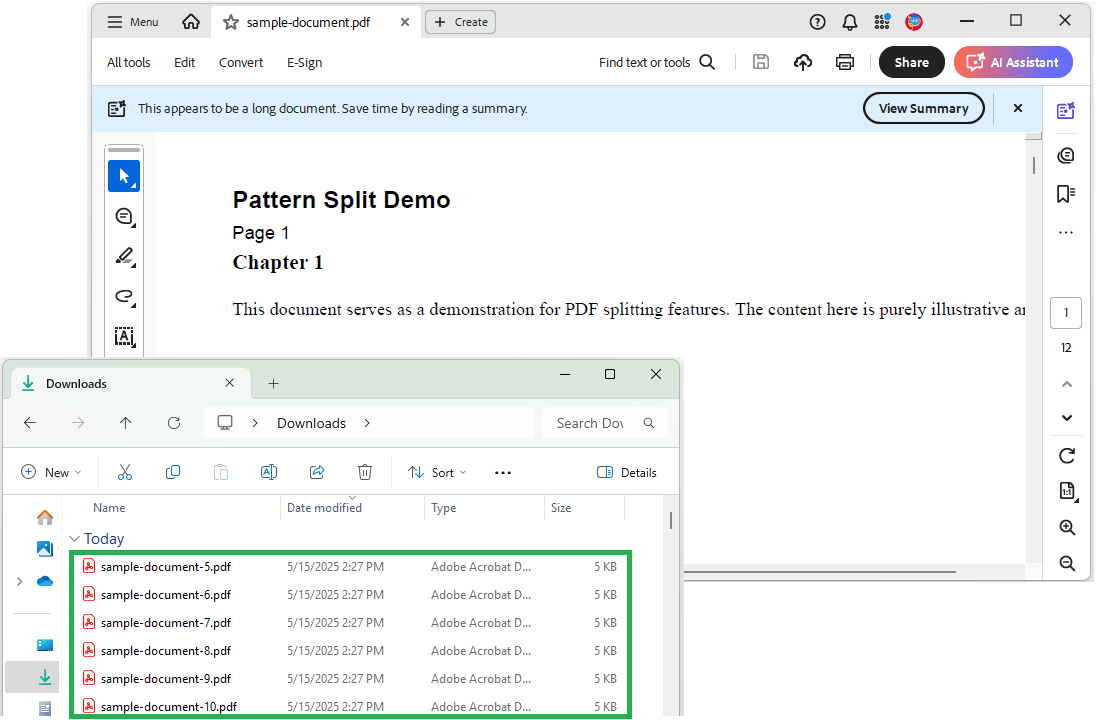
Use the SplitByRange parameter to put exact pages or ranges into separate output files, combining individual pages and ranges with commas:
var convert = await convertApi.ConvertAsync("pdf", "split",
    new ConvertApiFileParam("File", "files/sample.pdf"),
    // Three output files: page 1, page 3, and pages 5-7 combined
    new ConvertApiParam("SplitByRange", "1,3,5-7")
);
await convert.SaveFilesAsync("output/split-by-ranges");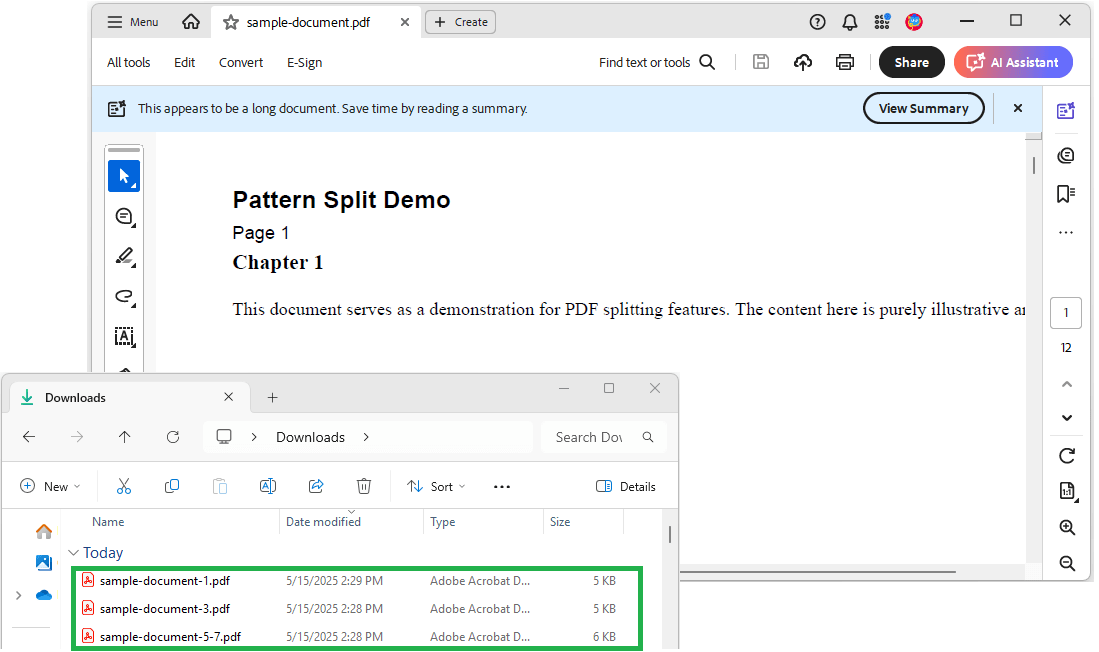
Set MergeOutput to "true" alongside SplitByRange or ExtractPages to combine the selected pages into a single PDF instead of separate files - extract and reassemble in one call:
var convert = await convertApi.ConvertAsync("pdf", "split",
    new ConvertApiFileParam("File", "files/sample.pdf"),
    new ConvertApiParam("SplitByRange", "1,3,5-7"),
    new ConvertApiParam("MergeOutput", "true")
);
await convert.SaveFilesAsync("output/merged-range-output");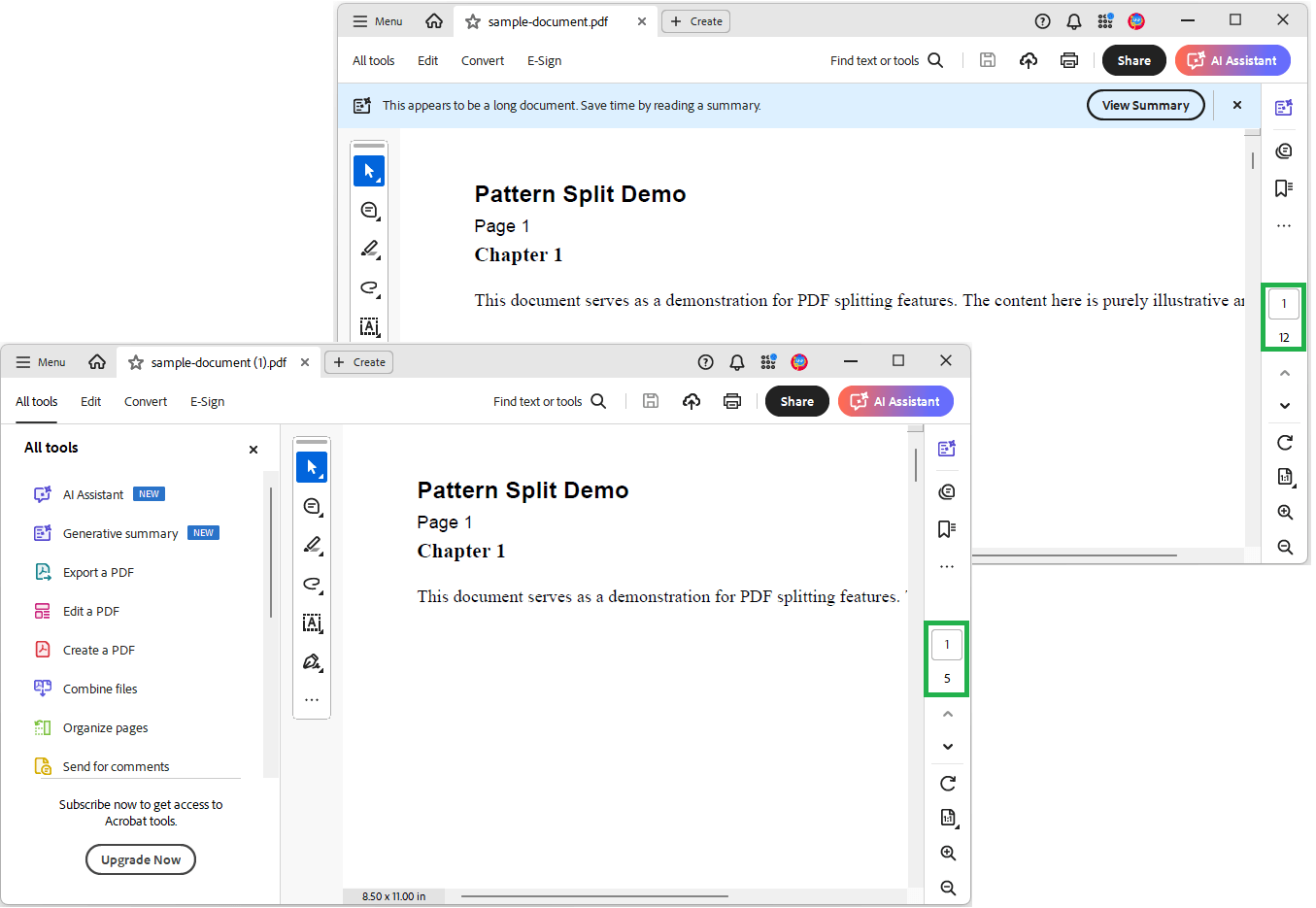
Limitations. It is a REST API: your files travel over HTTPS to the conversion servers (encrypted in transit, deleted after processing), each conversion costs credits, and offline environments are out. The full example project is on GitHub: ConvertAPI Split PDF C# Examples.
We split a four-page business deck into single pages with SplitByPattern=1 - these are the actual input and outputs:
With the libraries you must parse the outline tree and map bookmarks to page ranges manually. With ConvertAPI it is one parameter: SplitByBookmark=true.
PdfSharp's page loop (Method 2) or SplitByPattern=1 with ConvertAPI - both produce one file per page.
ConvertAPI accepts the document password via the Password parameter. iText and Aspose can open encrypted files with the password too, while PdfSharp support is limited.
Yes - all four methods target .NET Standard and run on .NET 6, 8, and later, on Windows and Linux.
Library-based splitting holds documents in your process memory. With the API, size is not your app's problem - upload, split, download the parts.
For page-level splits in simple documents, a free library does the job. The moment splitting depends on document content - bookmarks, chapter headings, invoice markers - the one-parameter SplitByBookmark and SplitByTextPattern calls earn their keep. Head over to the Split PDF for C# page to try them with your own files - the interactive demo generates working code while you experiment.